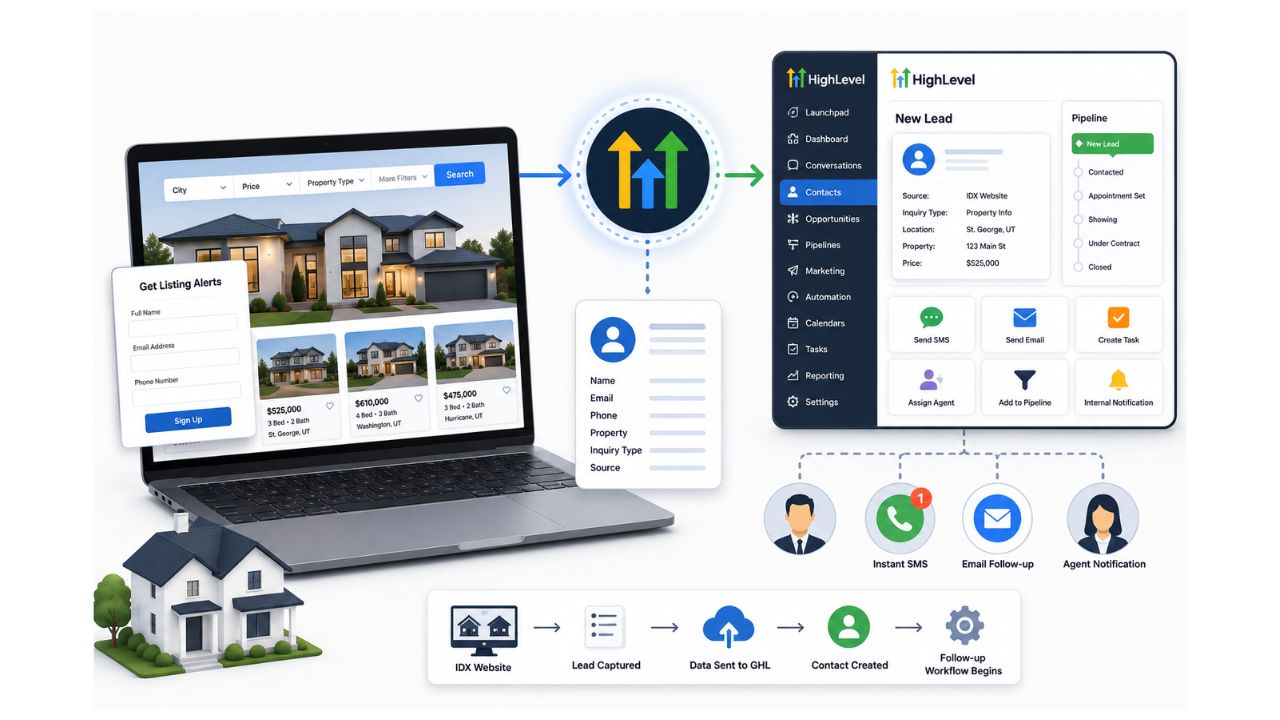
Introduction:
HikeBranding developers will let you know how to streamline your Lead Generation process by integrating Typeform and Pipedrive using Zapier. With this automation every time someone submits a Typeform, Zapier automatically creates a New Person and Leads in Pipedrive. This eliminates manual data entry, ensuring that your Sales team can focus on converting leads into customers. Whether you are running surveys, collecting contact information, or qualifying prospects, this seamless workflow saves time and keeps your pipeline up-to-date in real time.
Automated Lead Generation:
Every time a Typeform is submitted, Zapier automatically creates a new lead in Pipedrive, ensuring your pipeline is always up-to-date.
Seamless Contact Management:
Along with creating a Lead, a new person is also added to your Pipedrive contact list, capturing all relevant details without manual entry.
Real-time Updates:
The integration provides instant data transfer, so your team can act on new leads immediately without any delays.
Efficient Lead Tracking:
Each new Lead is instantly categorized in Pipedrive, allowing your team to track and follow up more efficiently.
Customizable Field Mapping:
Easily Map Typeform fields to specific Pipedrive fields, ensuring that all the important information is accurately captured.
Platforms:
We will use Typeform, Pipedrive and Zapier for this automation. In this automation workflow, when a Typeform is submitted, a new person is automatically created in Pipedrive and a new lead is also generated in Pipedrive.
Steps:
1. Create Your Typeform
- Login to Typeform Account.
- Create a Customer form by clicking on Create a new form Button.

- Select an option to add content in form, I am using Start from Scratch.
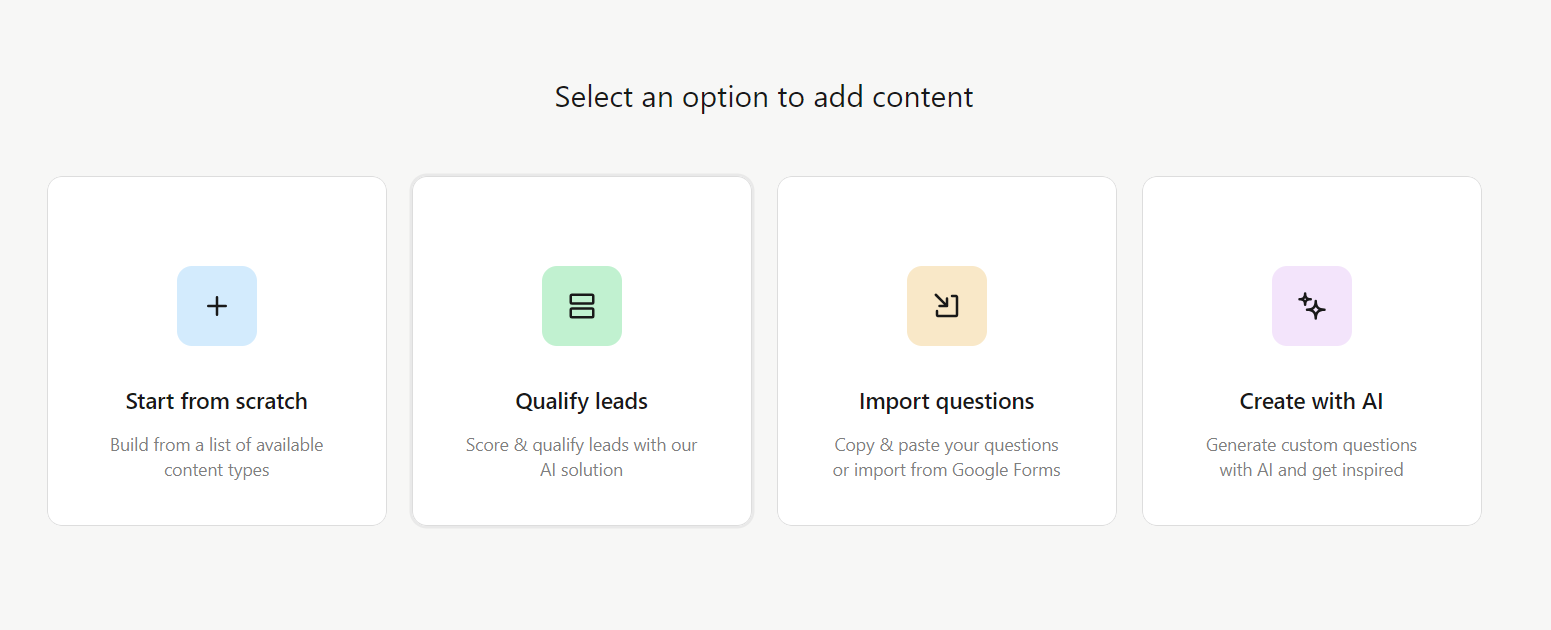
- Click on Add Content.

- Select an option to add to the form. If you select “Contact Info” a prebuilt contact form will be automatically included.

- Select Design from Gallery to add in your form.
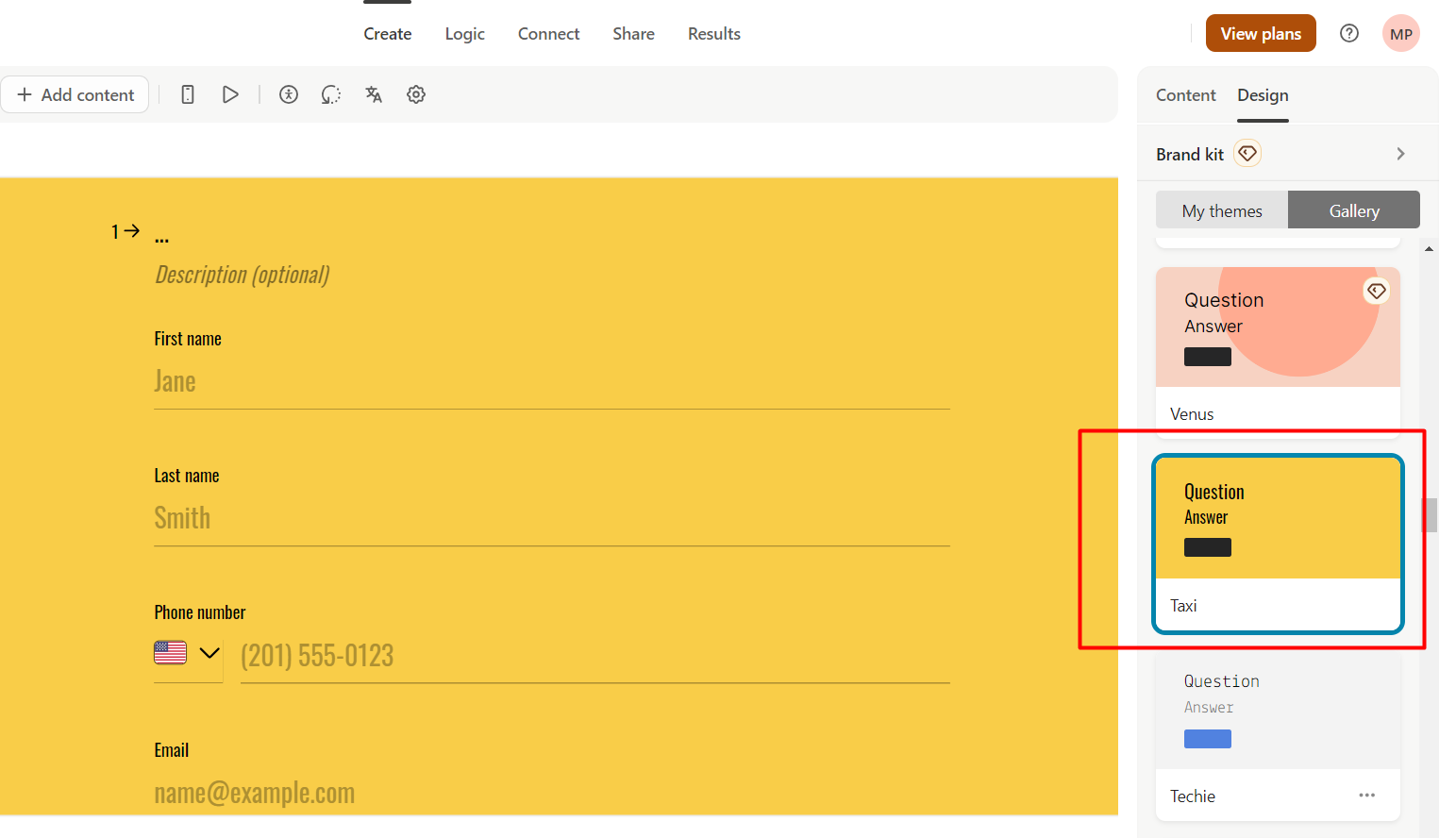
- Click on Publish button to publish the form.
2. Set Up Your Pipedrive Account
- Create a Pipedrive Account.
- Login to Account
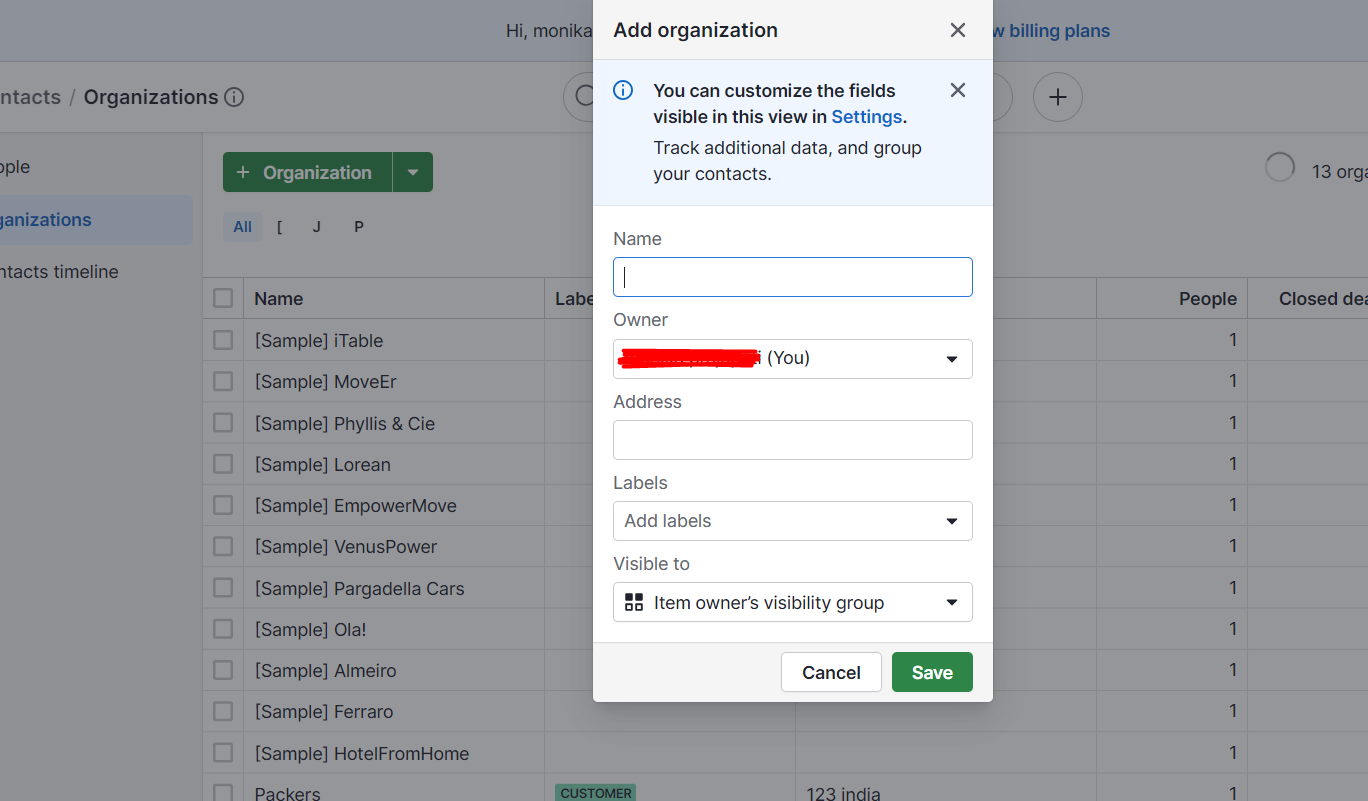
- Fill in the details of your organization
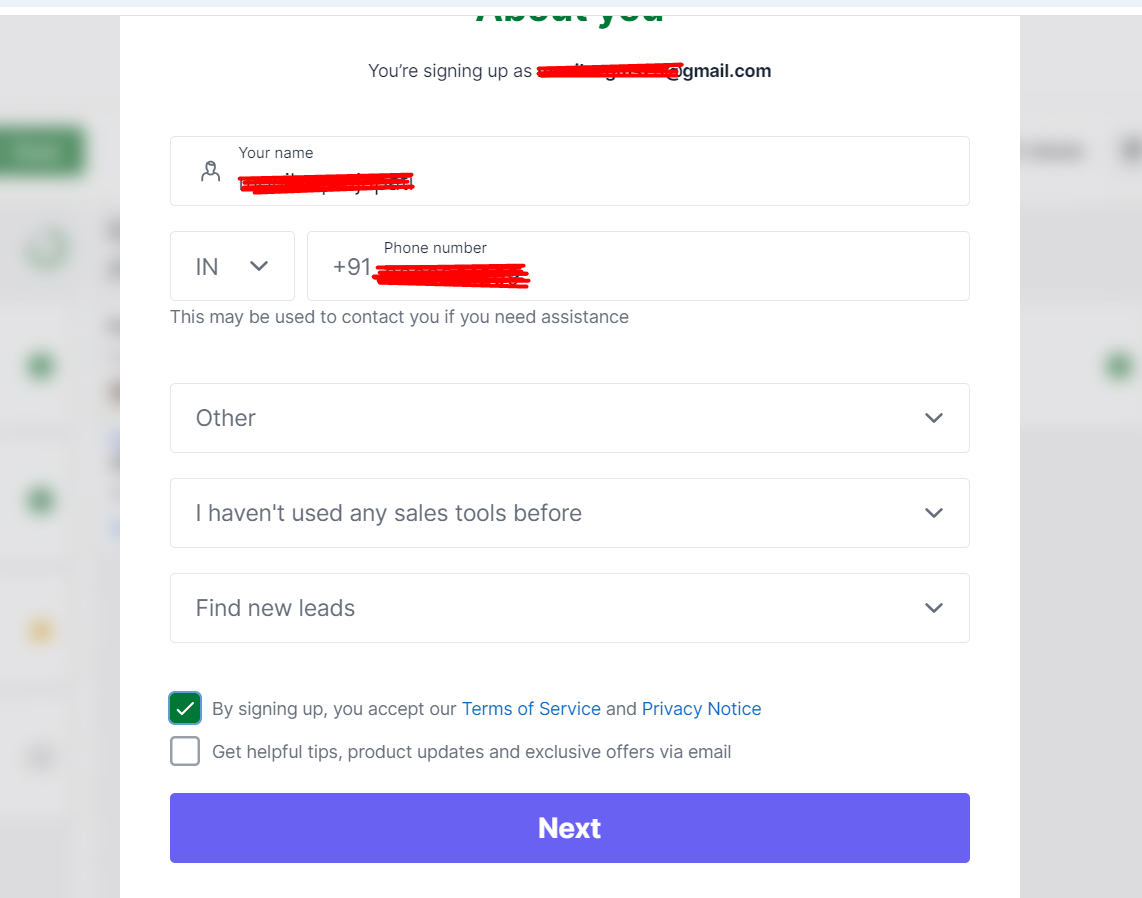
- Inside contacts add Organization detail and save.
3. Create a New Zap in Zapier
- Login to your Zapier Account.
- Create a Zap named: Typeform to Pipedrive.
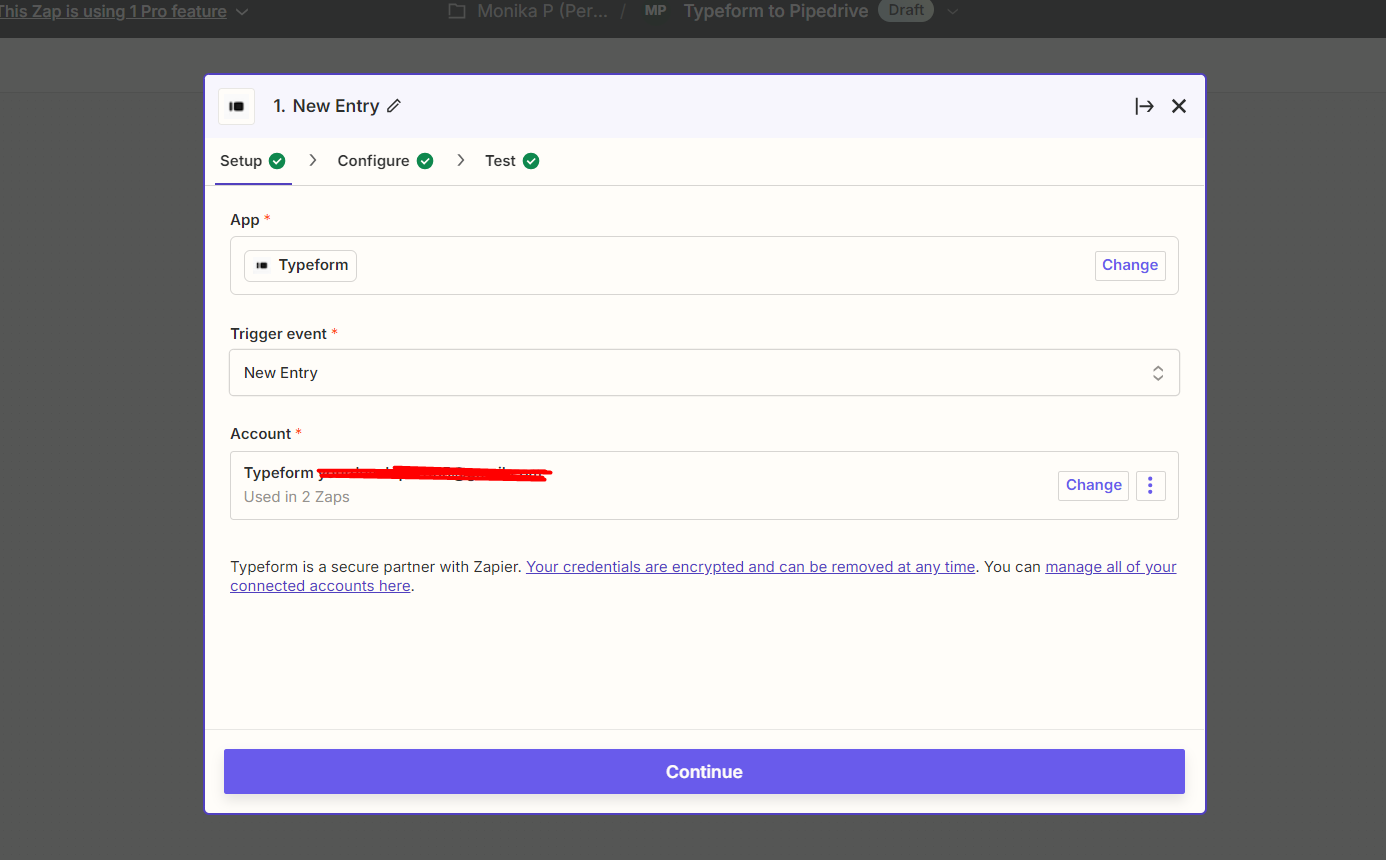
- Select Typeform as a trigger app and new entry as an event.
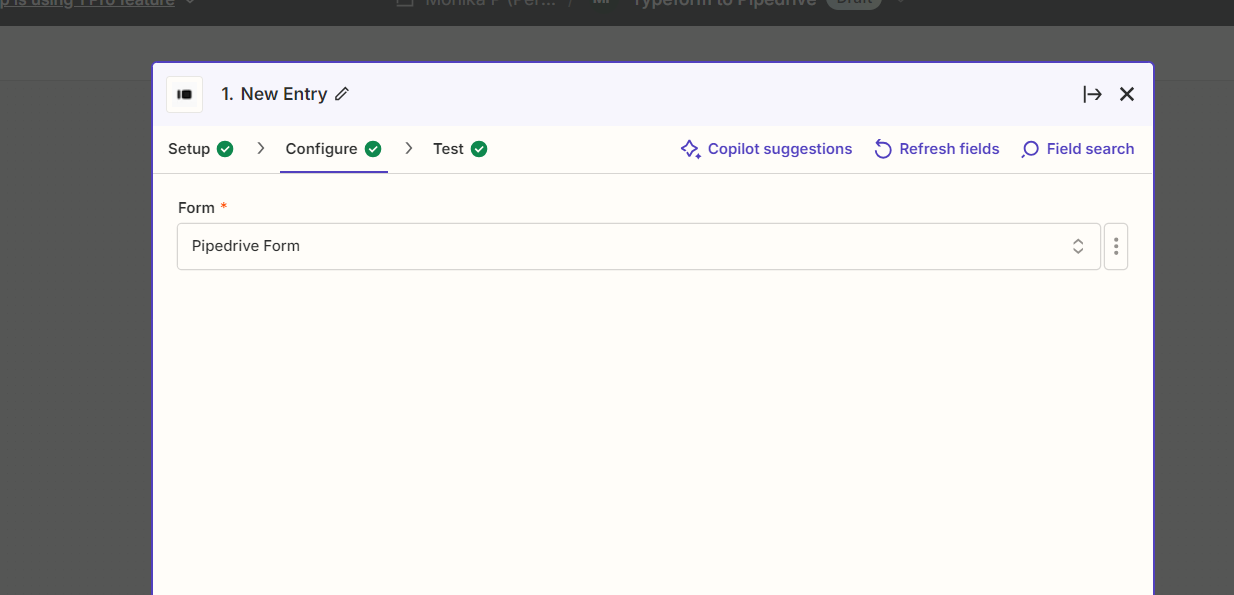
- Select the form name.
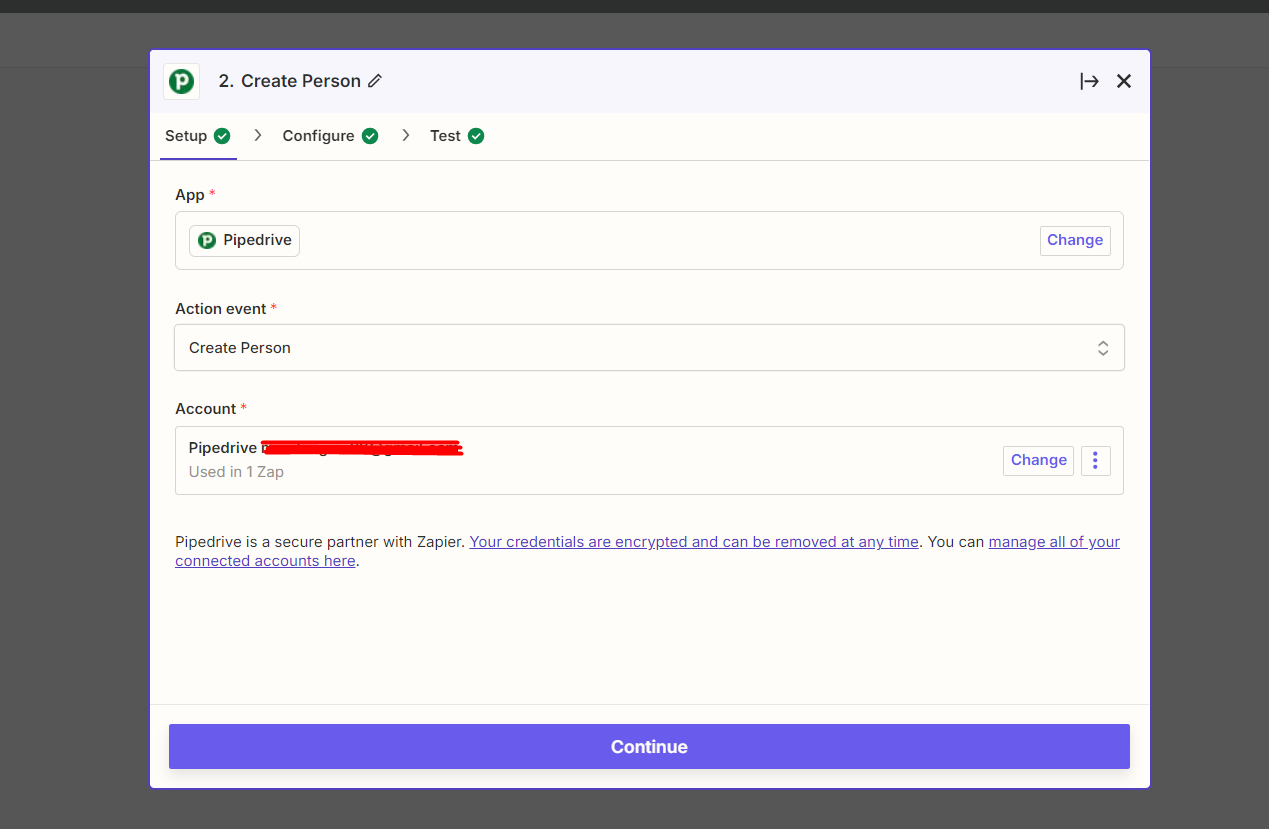
- Select Pipedrive as an action app and create a person as an event.
- Mapped all Typeform fields with Pipedrive(person) fields.
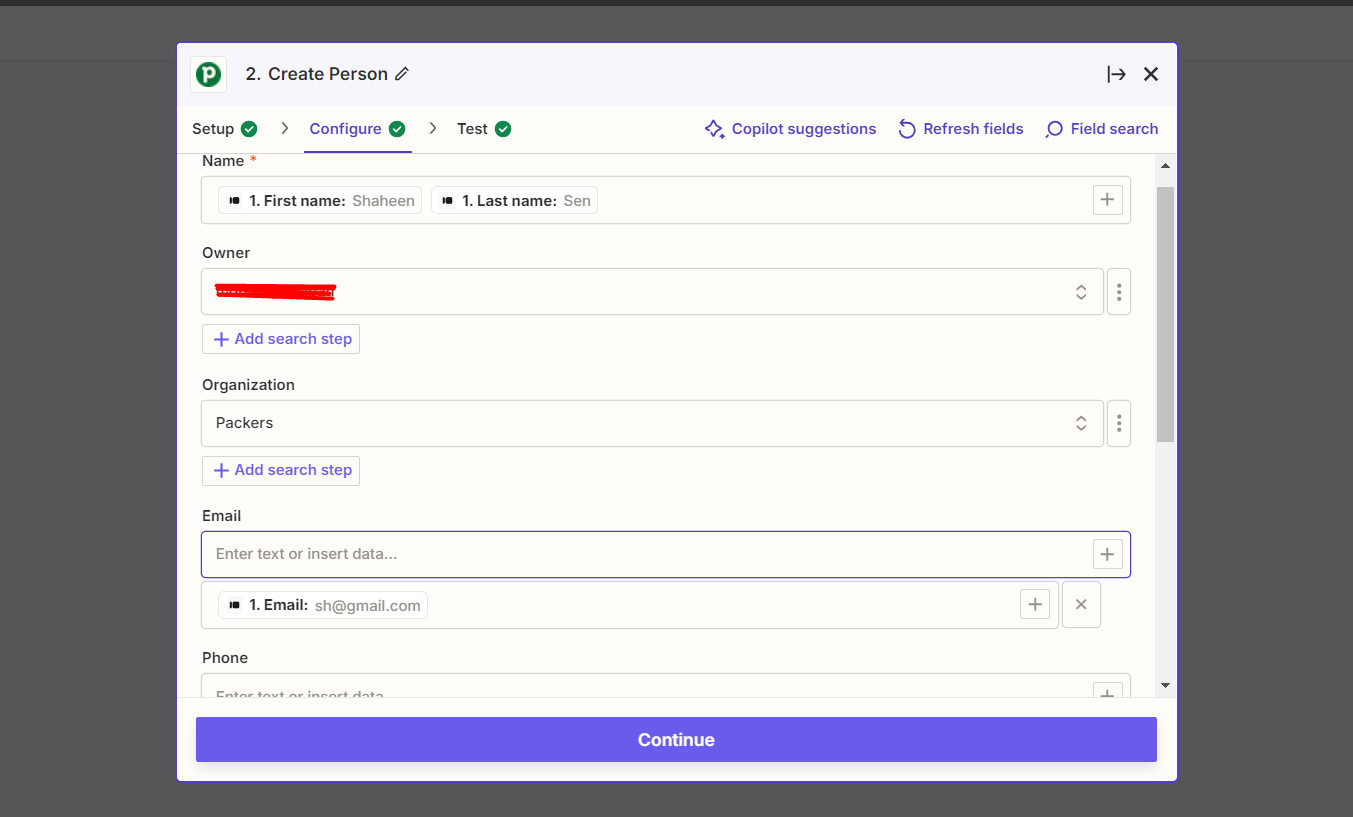

- Select Pipedrive as an action app and create a lead as an event.
- Mapped all Typeform fields with pipedrive(lead) fields.

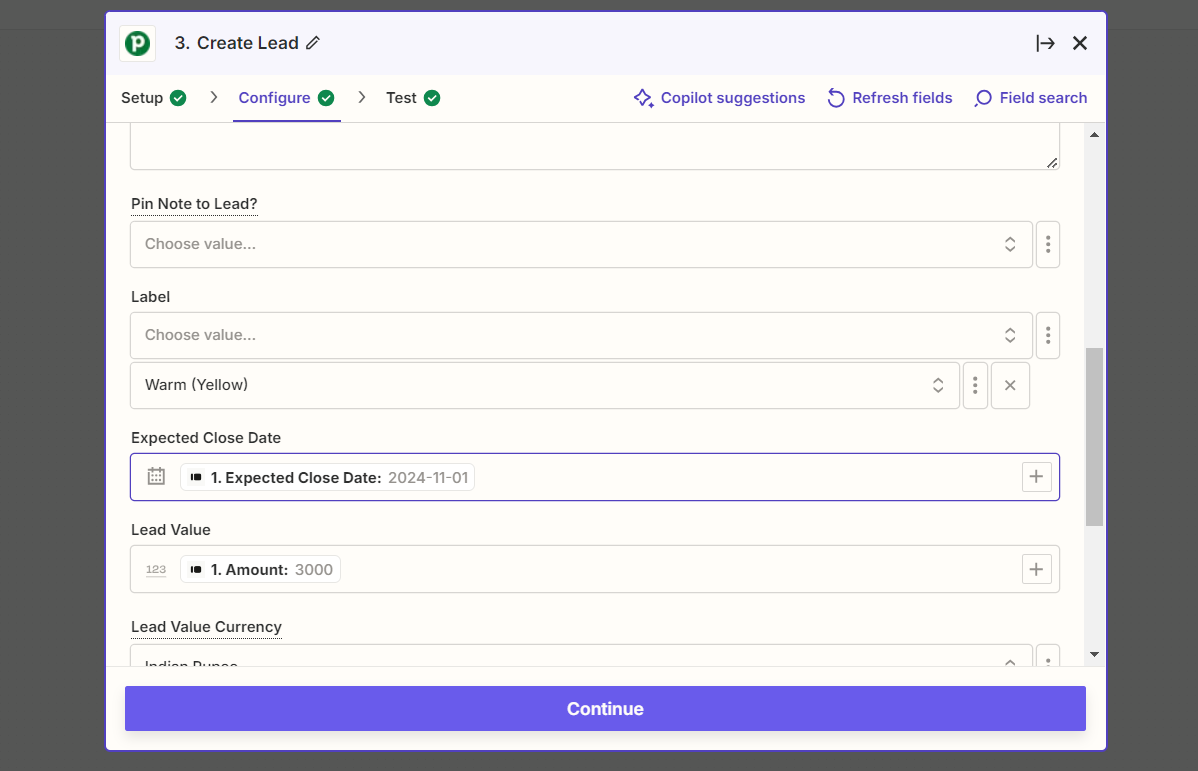
- Published the Zap.
4. Connect Typeform to Zapier
- Form Submission

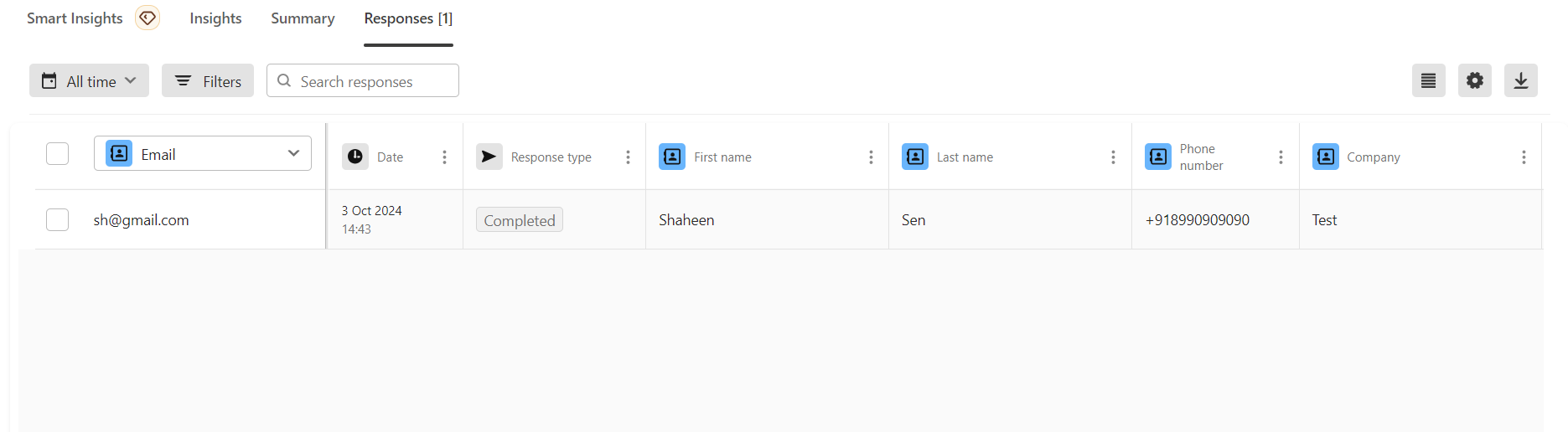
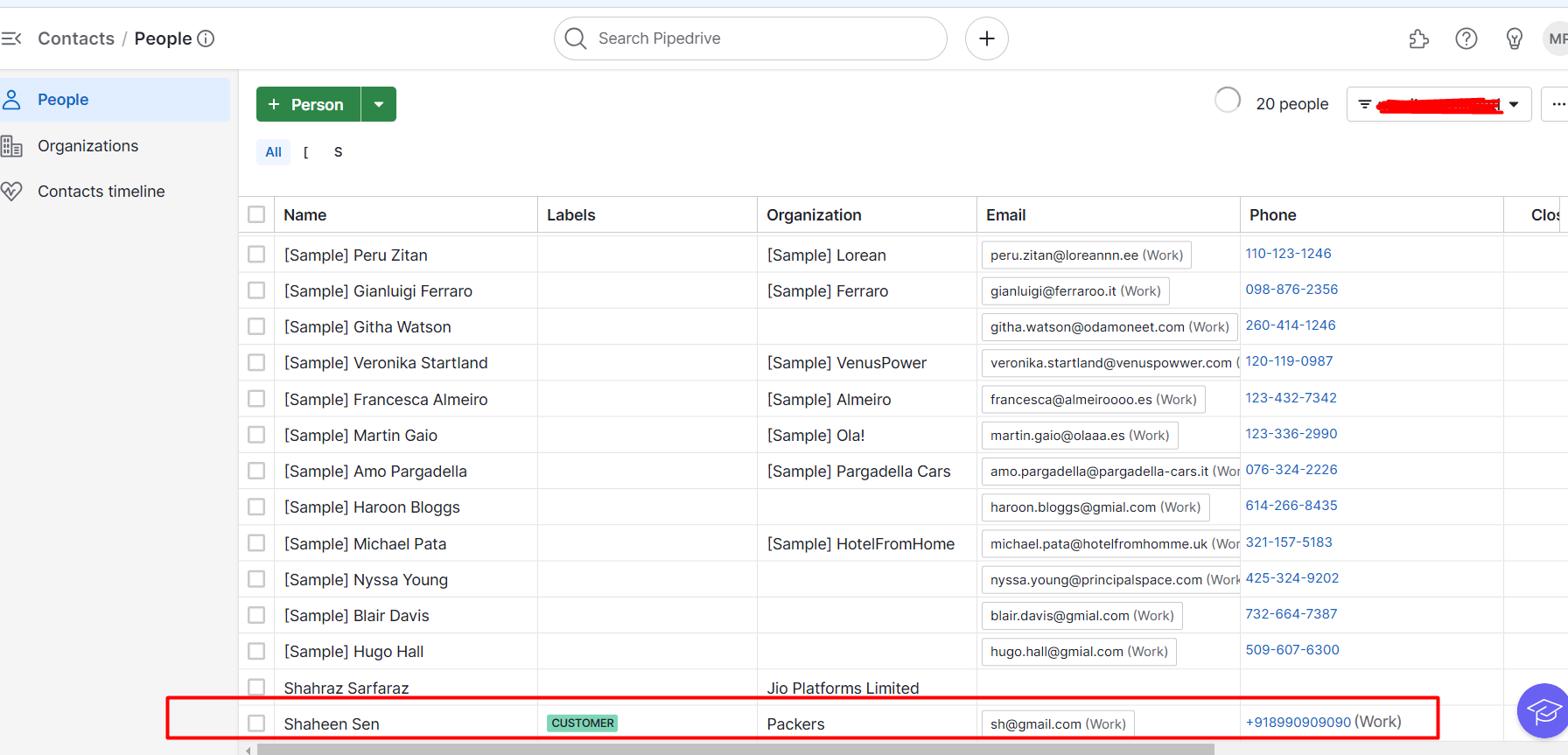
5. Create a Person in Pipedrive
- Organization
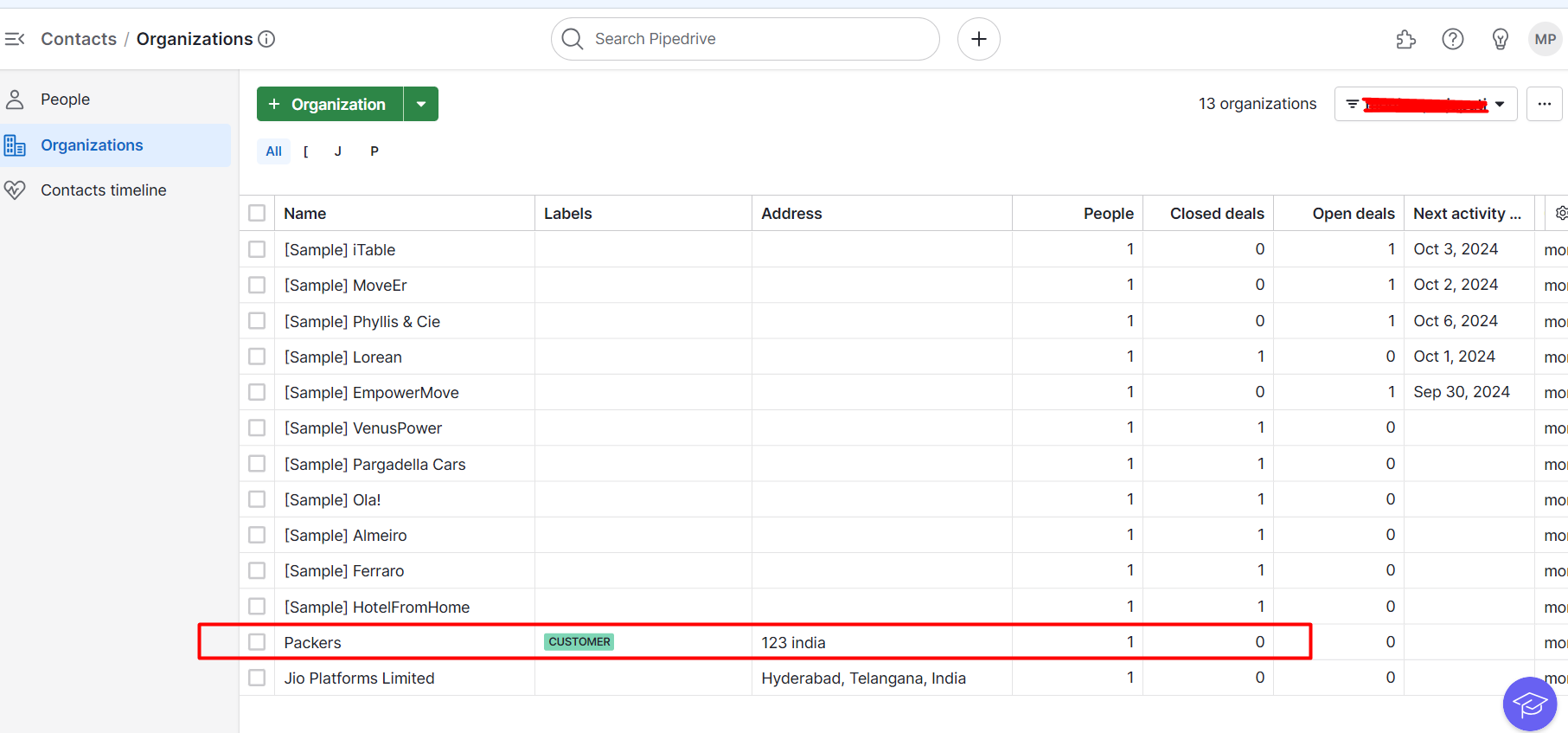
- Contacts
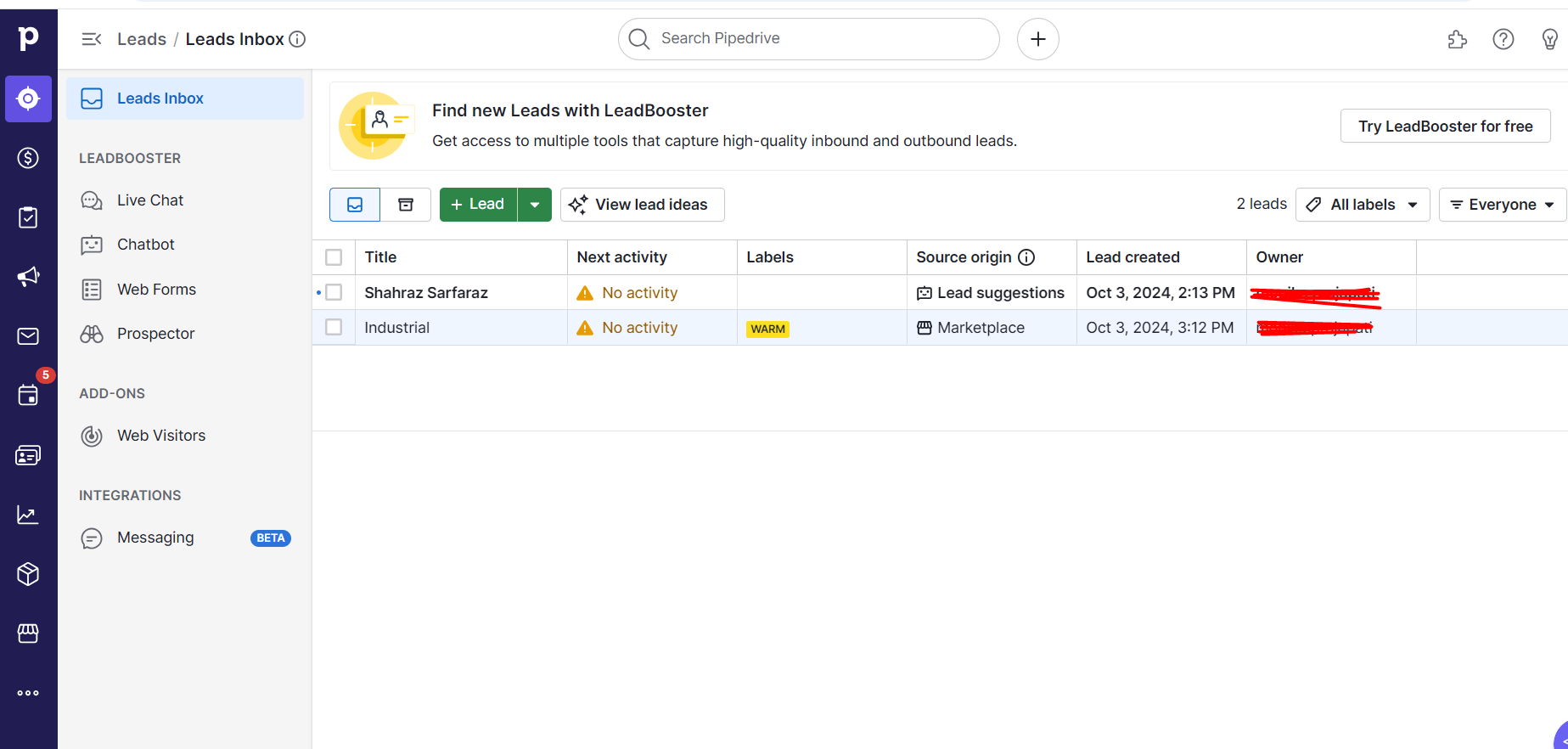
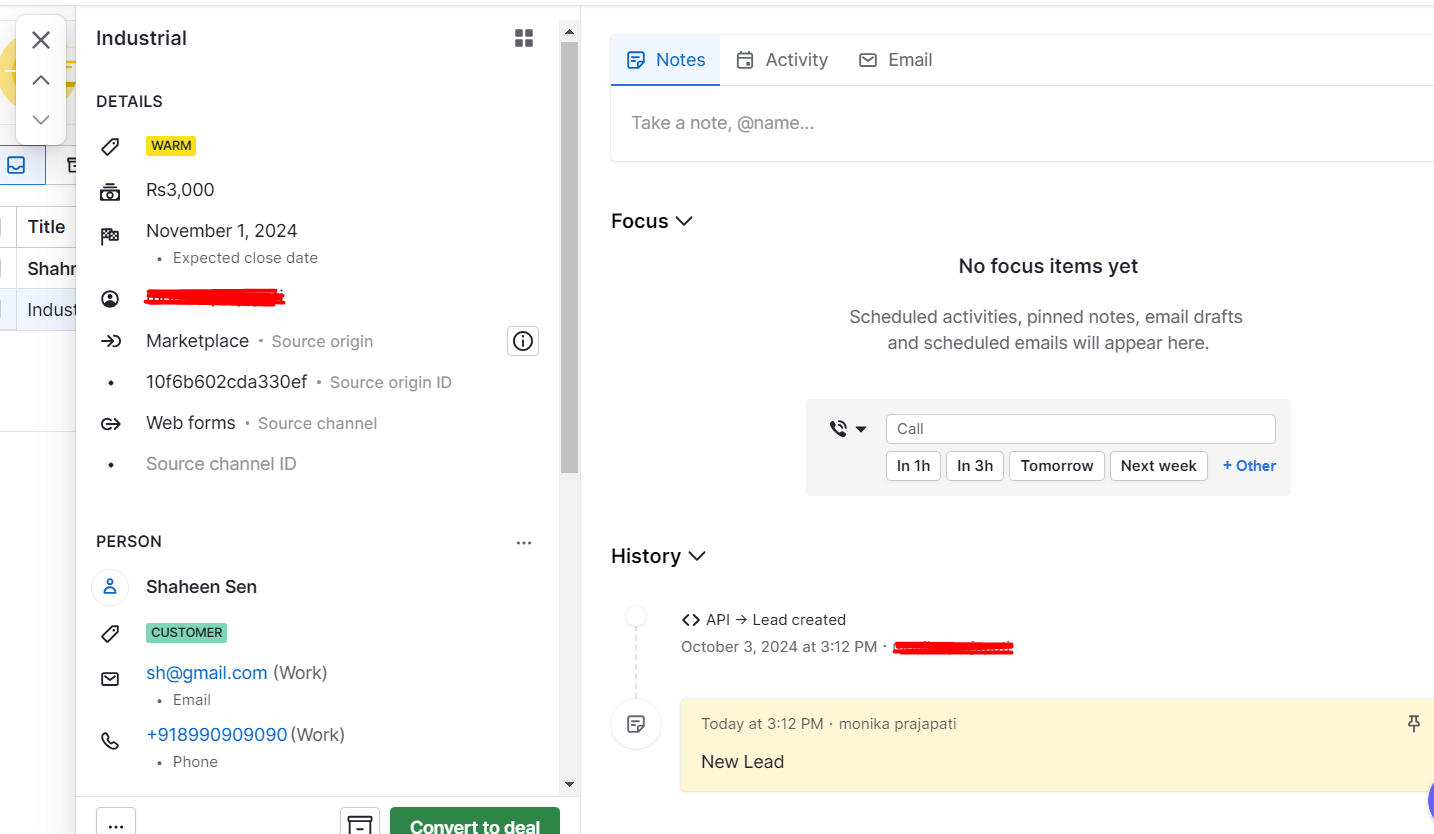
- Leads
Conclusion:
As explained by our developers at HikeBranding, it can be concluded that integrating Typeform, Pipedrive, and Zapier provides a highly efficient and automated lead generation process. Each Typeform submission automatically creates a new person and a corresponding lead in Pipedrive, significantly reducing manual data entry and allowing for real-time lead management. This seamless integration not only saves time but also helps teams stay organized and focused on nurturing relationships with potential clients. By automating this critical step, businesses can ensure that every opportunity is noticed while also maintaining a streamlined and scalable sales process. If you’re looking to optimize your automation workflow, it’s essential to hire a Zapier certified expert who can customize integrations and enhance efficiency.
Need help connecting Typeform to Pipedrive? Our team builds custom Zapier automations that connect forms, CRMs, sales tools, and other business applications.