Last updated: August 2026. In this tutorial you’ll build a small, production-ready pipeline that sends every Google Forms submission to Google Sheets automatically: Google Apps Script captures the response and POSTs it to a webhook URL, and a PHP script receives the payload and appends it as a new row using the Google Sheets API with a service account. No manual data entry, updates land in the sheet in real time, and the endpoint is protected with a shared secret so only your form can write to it. (Prefer not to write code? Jump to the no-code alternative.)
What you’ll use: Google Forms, Google Apps Script, a PHP webhook (any HTTPS host — or Ngrok for local testing), Google Cloud Console (Sheets API + service account), and Composer for the Google API client library.
Steps:
1. Google Form Setup:
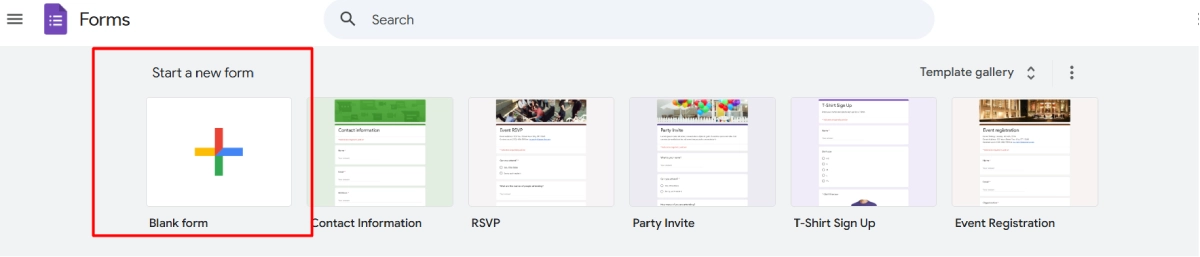
- Go to Google Forms, create a new form, and either select a blank form or choose a template.
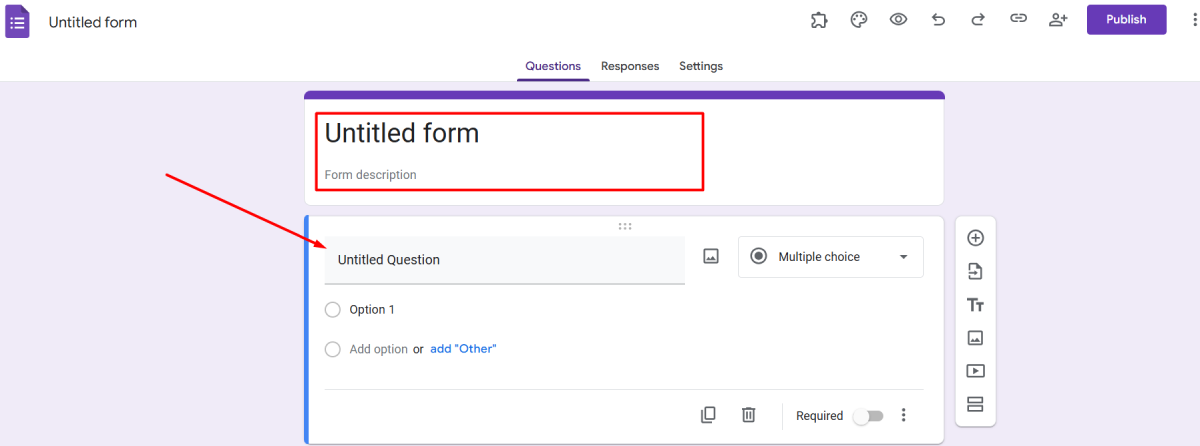
- Add a title and description, then create the questions you need to collect from respondents.
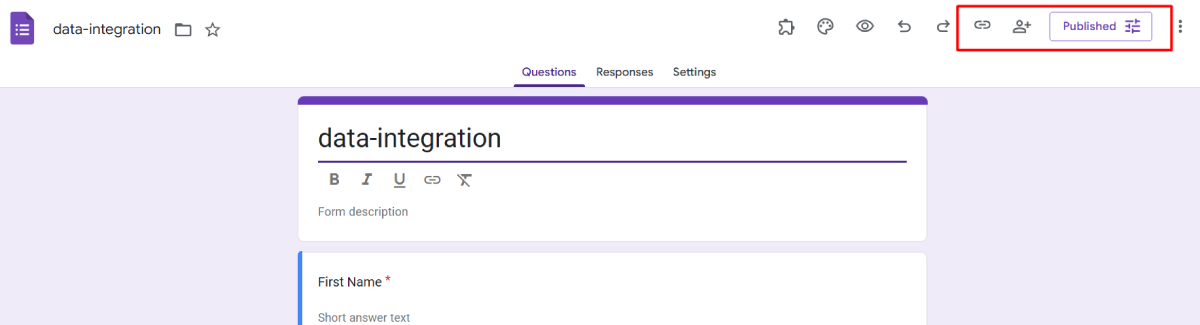
- When the form is complete, click Send to share it via email or copy the link.
2. Google Apps Script Setup:
- From your form, open the three-dot menu and choose Script editor (or go to Google Apps Script and create a new project bound to the form).
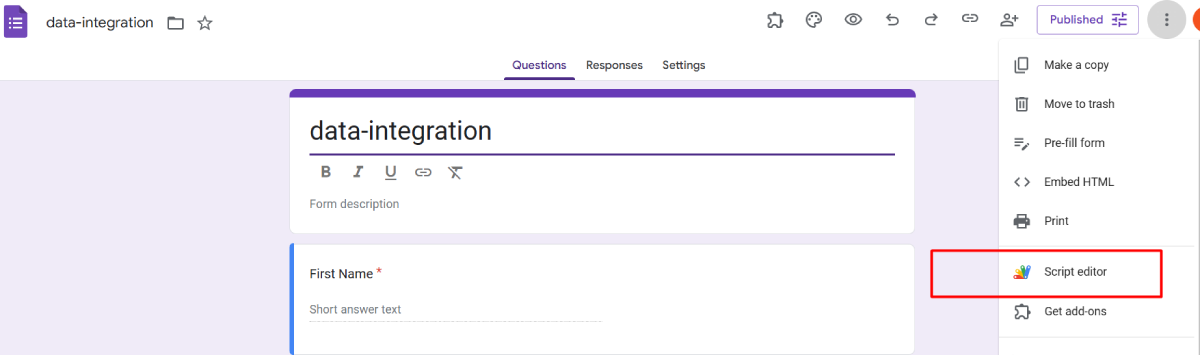
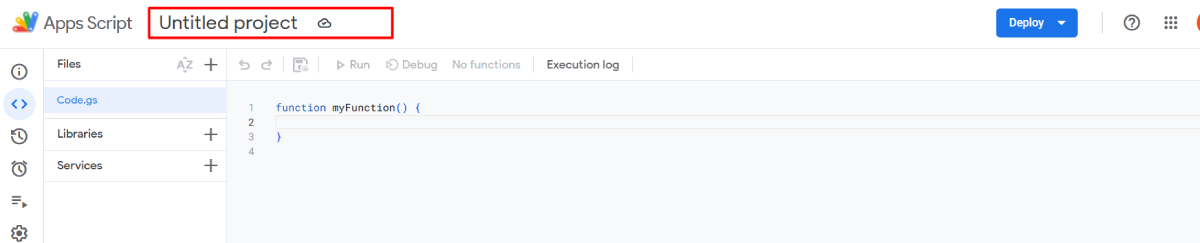
- Paste the script below. It captures every form response, builds a JSON payload (question titles become keys), and POSTs it to your webhook with a secret header.
- Then open the Triggers menu, add a new trigger, select the
onFormSubmitfunction, choose “From form” as the event source, set the event type to “On form submit”, and click Save.
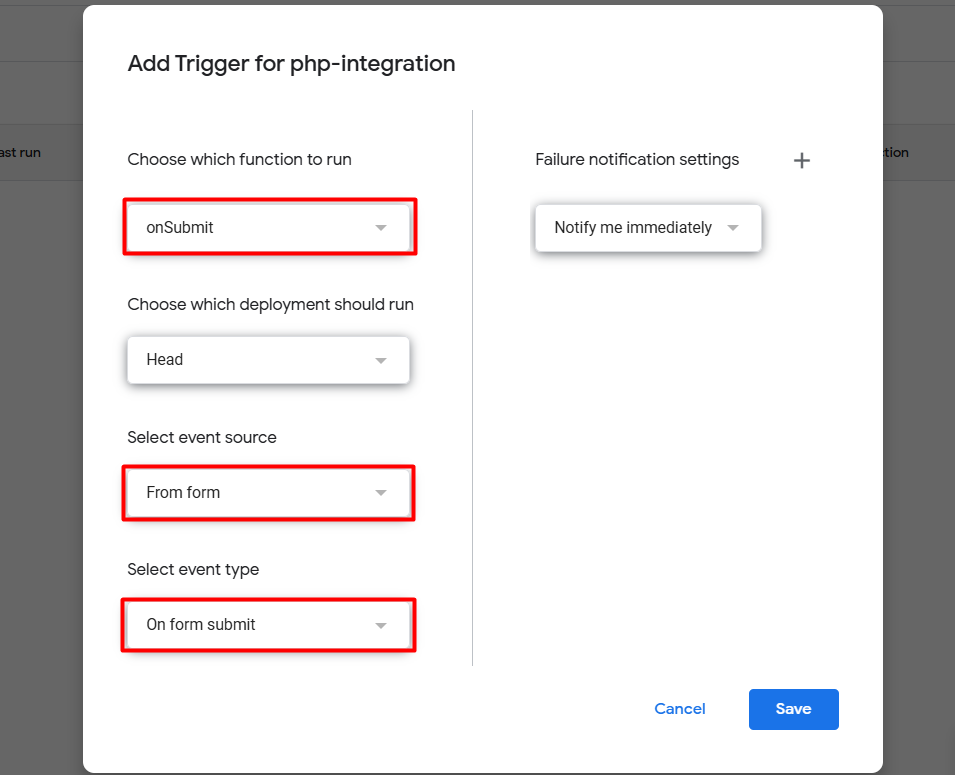
Apps Script (Code.gs):
function onFormSubmit(e) {
  const itemResponses = e.response.getItemResponses();

  const payload = {
    timestamp: e.response.getTimestamp(),
    email: e.response.getRespondentEmail()
  };

  itemResponses.forEach(function (itemResponse) {
    payload[itemResponse.getItem().getTitle()] = itemResponse.getResponse();
  });

  const options = {
    method: 'post',
    contentType: 'application/json',
    headers: { 'X-Webhook-Secret': 'YOUR_RANDOM_SECRET' },
    payload: JSON.stringify(payload),
    muteHttpExceptions: true
  };

  UrlFetchApp.fetch('https://yourdomain.com/webhook.php', options);
}
Note:
- Replace
YOUR_RANDOM_SECRETwith a long random string — the PHP endpoint will reject any request that doesn’t send it, so strangers can’t write to your sheet. - Google Apps Script cannot reach
localhostURLs. Deploy the PHP script to any HTTPS host, or use Ngrok for a temporary public URL while testing (see step 3).
3. Deploying Your Webhook Endpoint
To handle the webhook reliably in production, upload your PHP files to a live web server with HTTPS enabled.
- Upload your PHP files (
webhook.php,functions.php, thevendor/folder from Composer, and your service-account JSON key) to your web server via FTP, cPanel or File Manager. Keep the JSON key outside the public web root if possible. - Ensure HTTPS is active on your domain so the endpoint URL starts with
https://. - Copy your live endpoint URL (e.g.
https://yourdomain.com/webhook.php) and paste it into theUrlFetchApp.fetch()call in your Apps Script.
Testing Locally with Ngrok:
If you want to test the PHP script on your own computer first, use ngrok to expose your local environment through a temporary HTTPS tunnel:
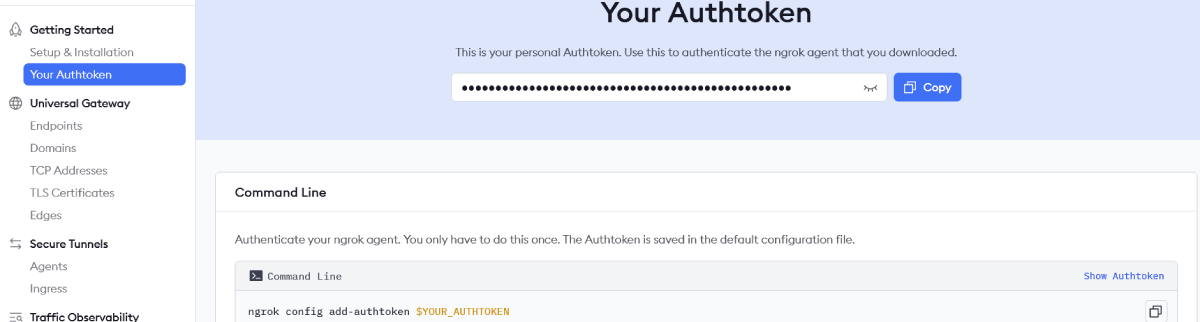
- Download and sign up at the ngrok website.
- Authenticate ngrok in your terminal:
ngrok config add-authtoken YOUR_AUTHTOKEN- Start ngrok on port 80:
ngrok http 80- Use the generated
https://ngrok URL as your temporary endpoint in Google Apps Script.
4. Google Sheet Setup:
- In Google Sheets, click Blank to create a new spreadsheet and name it.
- Add header columns matching the data you’ll append — e.g.
Timestamp,Email,Name,Message. - Copy the spreadsheet ID from the URL (the long string between
/d/and/edit) — you’ll need it in the PHP script. - Click Share in the top-right corner and add the service account email from Google Cloud Console (created in step 5) with Editor permission. Without this, the API returns a 403 error.
5. Google Cloud Console Setup:
- In the Google Cloud Console, click the Project Selector in the top navigation bar and choose New Project.
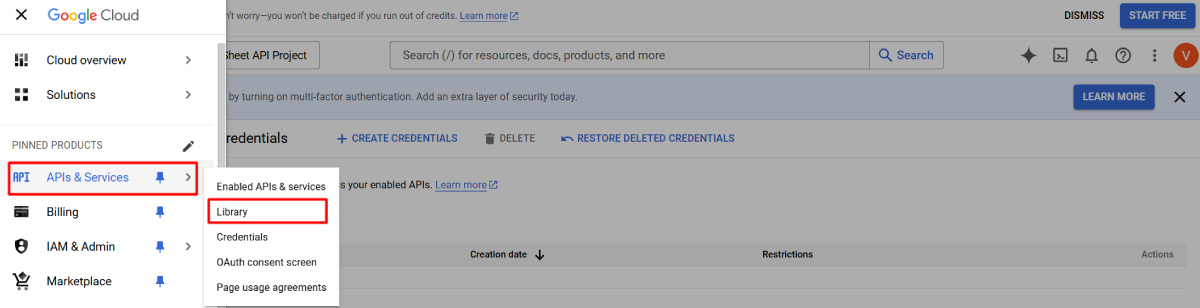
- Go to APIs & Services > Library, search for the Google Sheets API and enable it.
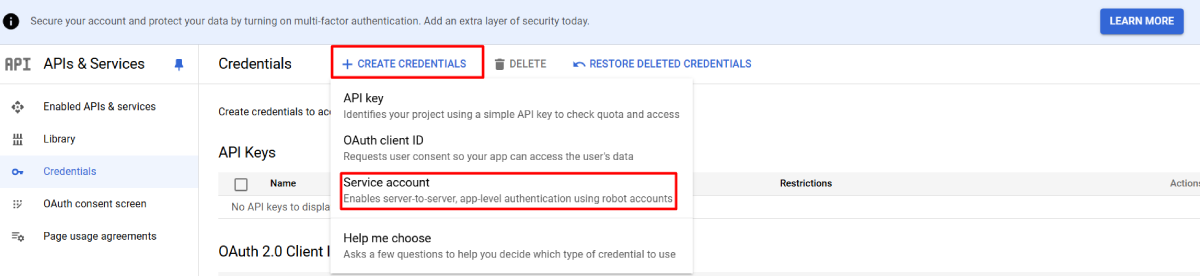
- Under APIs & Services > Credentials, click Create Credentials and select Service Account.
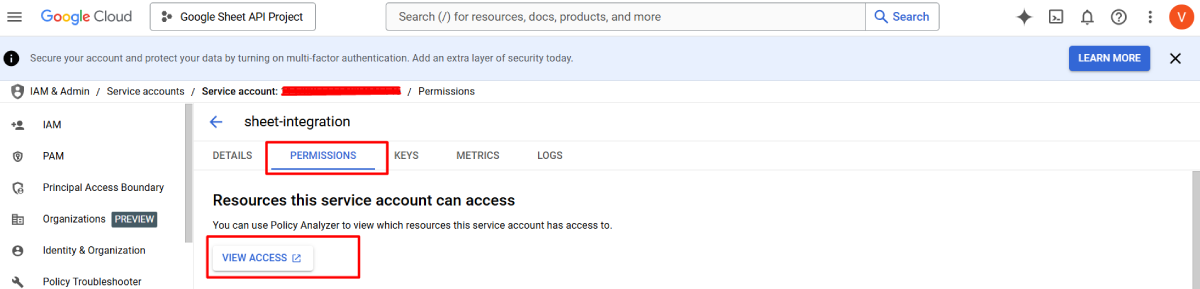
- Enter the service account details, including the service account name and account ID.
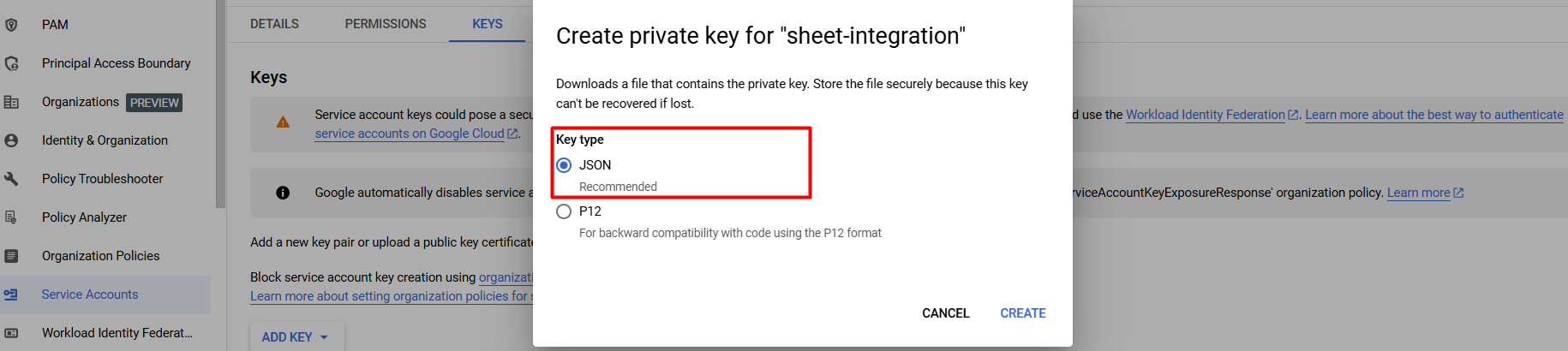
- Open the service account, go to the Keys tab, create a new key of type JSON, and download it. Save it next to your PHP files as
service-account.json.
6. Write the PHP integration:
First install the official Google API client library with Composer:
composer require google/apiclientTwo files do the work: webhook.php receives and validates the incoming request, and functions.php defines a small class that authenticates with the service account and appends rows via the Sheets API.
webhook.php:
<?php
require __DIR__ . '/vendor/autoload.php';
require __DIR__ . '/functions.php';

// 1. Reject requests that don't carry our shared secret
$secret = $_SERVER['HTTP_X_WEBHOOK_SECRET'] ?? '';
if (!hash_equals('YOUR_RANDOM_SECRET', $secret)) {
    http_response_code(403);
    exit(json_encode(['status' => 'error', 'message' => 'Forbidden']));
}

// 2. Read and validate the JSON payload
$json = file_get_contents('php://input');
$data = json_decode($json, true);

if (!$data) {
    http_response_code(400);
    exit(json_encode(['status' => 'error', 'message' => 'Invalid payload']));
}

// 3. Append the submission to Google Sheets
$sheets = new GoogleSheetsService(
    __DIR__ . '/service-account.json',
    'YOUR_SPREADSHEET_ID'
);

$sheets->appendRow([
    $data['timestamp'] ?? date('c'),
    filter_var($data['email'] ?? '', FILTER_SANITIZE_EMAIL),
    $data['Name'] ?? '',
    $data['Message'] ?? '',
]);

http_response_code(200);
echo json_encode(['status' => 'success', 'message' => 'Row added to Google Sheet']);
functions.php:
<?php
use Google\Client;
use Google\Service\Sheets;
use Google\Service\Sheets\ValueRange;

class GoogleSheetsService
{
    private Sheets $service;
    private string $spreadsheetId;

    public function __construct(string $credentialsPath, string $spreadsheetId)
    {
        $client = new Client();
        $client->setAuthConfig($credentialsPath);
        $client->addScope(Sheets::SPREADSHEETS);

        $this->service = new Sheets($client);
        $this->spreadsheetId = $spreadsheetId;
    }

    public function appendRow(array $row): void
    {
        $body = new ValueRange(['values' => [$row]]);

        $this->service->spreadsheets_values->append(
            $this->spreadsheetId,
            'Sheet1!A:D',
            $body,
            ['valueInputOption' => 'USER_ENTERED']
        );
    }
}
How it fits together: replace YOUR_RANDOM_SECRET with the same string you set in the Apps Script, YOUR_SPREADSHEET_ID with the ID from step 4, and adjust the $data['Name']-style keys to match your form’s question titles exactly. The keys in the payload are the question titles, so a question called “Phone Number” arrives as $data['Phone Number'].
Results:
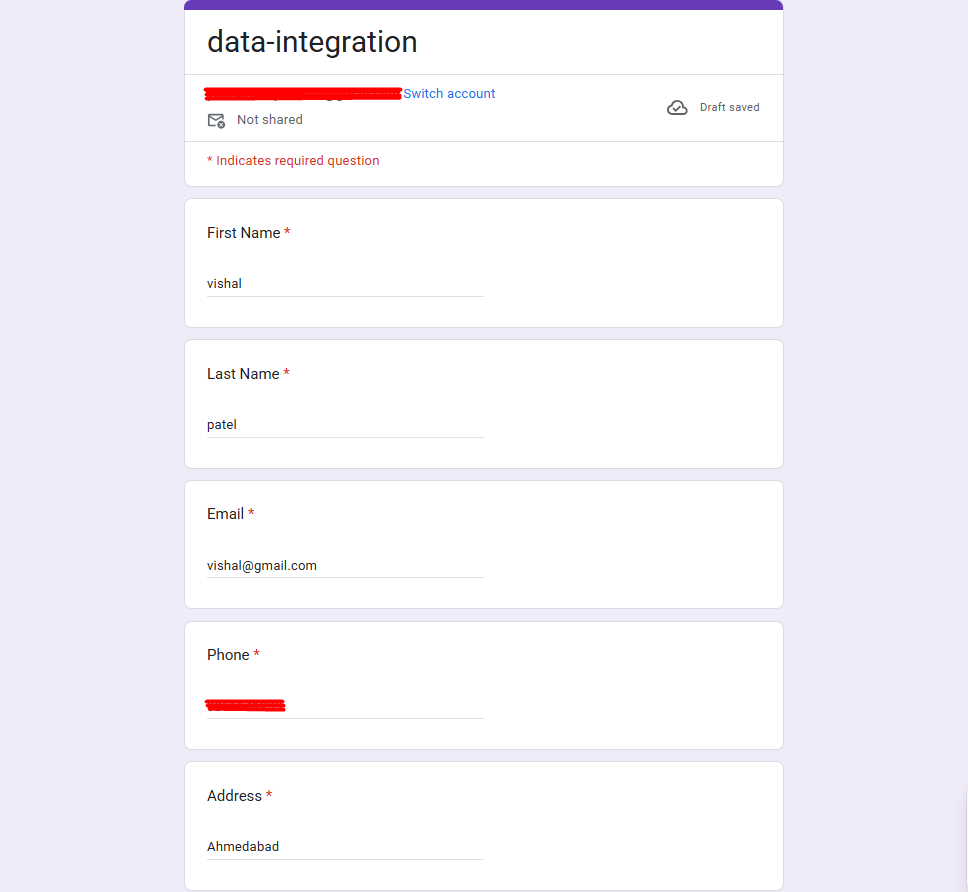
Google Form
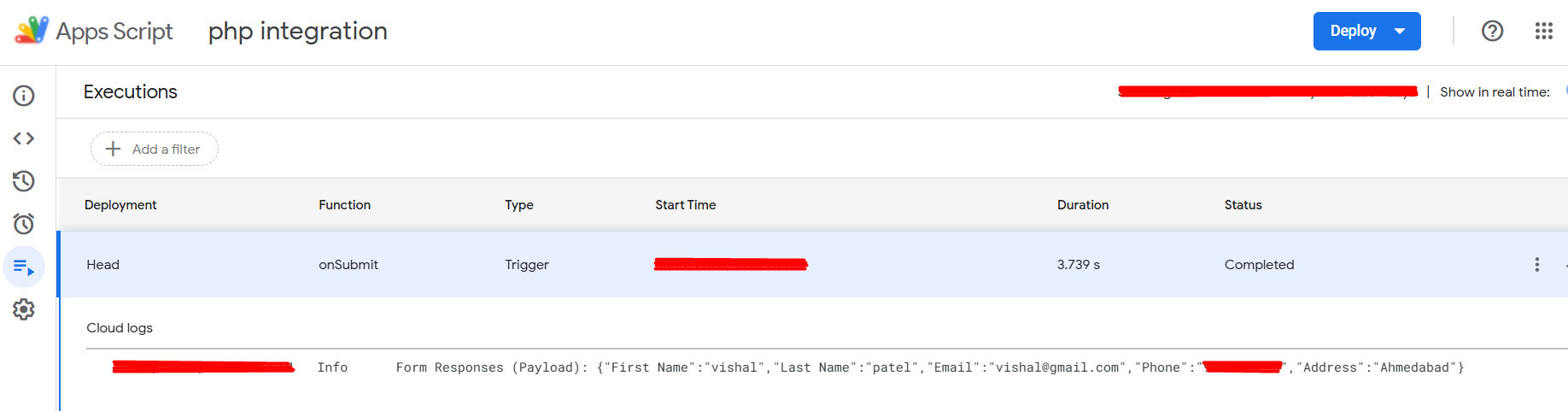
Google Apps Script Execution
Google Sheet

No-Code Alternative
If you’d rather not maintain custom code, you can connect Google Forms to your tools with a no-code integration platform and have a production-ready connection in a few minutes:
- Zapier: create automated workflows (“Zaps”) that trigger whenever a new Google Form response arrives — see our guide to integrating third-party CRM APIs with Zapier for the same pattern without code.
- Make (formerly Integromat): design visual data flows to route, transform, and send Google Forms payloads anywhere in real time.
Send Google Forms Data to Your CRM
The same webhook payload can feed your CRM directly, so every inquiry is captured instantly and no qualified lead slips through the cracks.
Keap Integration
Send Google Forms responses straight into Keap: new submitters are immediately tagged, added to contact segments, and enrolled in follow-up sequences without manual data entry — here’s a worked example of wiring form submissions into Keap.
HubSpot Integration
Route form submissions directly into HubSpot: map form fields to contact attributes, assign incoming leads to specific sales reps, and trigger deal updates automatically.
GoHighLevel Integration
Pipe incoming lead data into GoHighLevel: webhook triggers can fire immediate SMS follow-ups, pipeline placement, and appointment-booking workflows the moment a user hits submit.
Conclusion:
With one Apps Script trigger, a secured PHP webhook, and a service account for the Google Sheets API, every Google Forms submission lands in your spreadsheet the moment it’s submitted — no manual entry, no missed responses, and a payload you can reuse to feed a CRM at the same time. If you’d like help building this for your business — or a fully managed version with error alerts and retries — the Hike Branding team does this every week: call 1-844-366-4008 or email [email protected].